


Recent Articles

Virginia Tech Spring Game Review, Part 1
Spring practice is over, and today Brandon Patterson gives us part one of his Virginia Tech spring game breakdown. READ MORE

Dylan Wittke, Tralon Mitchell, Antonio Cotman Enter Transfer Portal
That makes four Hokies who entered the transfer portal Wednesday, two days after the post-spring window opened. READ MORE
Hokies Offensive Lineman Gabriel Arena Enters The Transfer Portal
Arena is the first Hokies player to announce his intentions to transfer now that the post-spring transfer window has opened. READ MORE

TSL Podcast 360: Virginia Tech Spring Football Recap
On TSL Podcast 360, the crew recap's Virginia Tech football's spring game and where the Hokies stand heading into the summer. (73 mins) READ MORE
No. 23 Virginia Tech Baseball’s Pitching Bounces Back In 7-1 Win Over Radford
After a shaky weekend in Atlanta, Virginia Tech baseball’s arms rebounded in its 7-1 win over Radford on Tuesday night at English Field. READ MORE

Michael Gibbs Sets Three Official Visits
Michael Gibbs is set to take one of his three officials to Virginia Tech. He is an offensive lineman from Wilmington, NC. READ MORE
Lemley’s Shutout Guides No. 15 Virginia Tech Softball Past UVa
Emma Lemley’s second complete-game shutout of the season guided No. 15 Virginia Tech softball past Virginia on Tuesday, 6-0. READ MORE

Virginia Tech Hosts Four Official Visitors
Virginia Tech hosted four official visitors for the Spring Game, with more set to visit Blacksburg in May and June. READ MORE
Jahmari DeLoatch Hopes To Make Decision Soon
He has 13 scholarship offers, but Oscar Smith (Va.) three-star cornerback Jahmari DeLoatch is narrowing down that list a bit. READ MORE

Hokies Center Elizabeth Kitley Selected In 2024 WNBA Draft By Aces
Hokies center Elizabeth Kitley was selected with the 24th pick in the 2024 WNBA Draft by the Las Vegas Aces Monday. READ MORE

Cal Guard Rodney Brown Jr. Commits To Virginia Tech
Cal guard Rodney Brown Jr. committed to Virginia Tech on Monday. He's the third transfer portal addition for the Hokies this offseason. READ MORE
Post-Spring Thoughts: Virginia Tech Well-Positioned For 2024
Spring practice has concluded for Virginia Tech, and the Hokies are well-positioned to have a good team in 2024. READ MORE

Connor McGonagle Commits To Virginia Tech Wrestling
Tony Robie and Virginia Tech wrestling earned their second commitment of the offseason on Monday in Lehigh’s Connor McGonagle. READ MORE
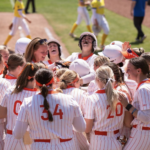
No. 16 Hokies Softball Scores 12 In Fifth For D’Amour’s 300th Win
The No. 16 Hokies entered the fifth trailing 4-1 but scored 12 to run-rule Boston College, good for Pete D'Amour's 300th career win. READ MORE
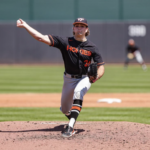
Bullpen Implosion Dooms No. 16 Virginia Tech Baseball Again In Atlanta
After taking an early 7-0 lead, No. 16 Virginia Tech gave up nine runs in the fifth and six innings to drop an 11-7 game at Georgia Tech. READ MORE

Five Thoughts The Day After The Hokies’ Spring Game
Some post-spring game thoughts on the backup quarterbacks, a deep receiver room, "sacks," spring award winners and more for the Hokies. READ MORE
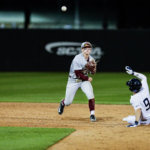
Georgia Tech Baseball Walks All Over No. 16 Virginia Tech In 19-0 Drubbing
In a complete reversal of Friday's win, No. 16 Virginia Tech was utterly overwhelmed in a 19-0 thrashing at the hands of Georgia Tech. READ MORE

Bitter: Drones Shines In Short Spring Game Outing, Capping Optimistic Month For Hokies
Hokies quarterback Kyron Drones led the Maroon team to three touchdown drives in Saturday's spring game while other reserves shined. READ MORE

Maroon Team Wins Virginia Tech Football’s Annual Spring Game 21-14
The Maroon team beat the Orange team 21-14 in Virginia Tech football’s annual spring game on Saturday, April 13, in Lane Stadium. READ MORE
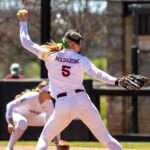
No. 16 Virginia Tech Softball Allows One Hit to Cruise Past Boston College
Emma Mazzarone allowed one hit in four innings, helping No. 16 Virginia Tech softball cruise to a 9-0 win over Boston College Saturday. READ MORE

Virginia Tech To Retire Elizabeth Kitley’s Jersey In The Fall
Elizabeth Kitley is having her jersey retired at Virginia Tech in the fall. She broke the news during Saturday's spring game in Blacksburg. READ MORE
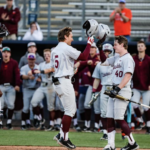
Bats Roar Back To Life For No. 16 Virginia Tech Baseball In 11-1 Win Over Georgia Tech
Following a cold series in Blacksburg, Virginia Tech baseball’s bats came back to life in an 11-1 thrashing of Georgia Tech on Friday. READ MORE

No. 16 Virginia Tech Softball Explodes In 12-2 Win Over Boston College
No. 16 Virginia Tech softball exploded for six runs in the fifth inning en route to its 12-2 run-rule win over Boston College on Friday. READ MORE
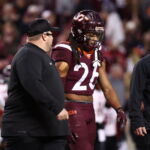
The First Bank & Trust Friday Q&A: Portal Talk, And The Most Important Player Besides Drones
In this week's First Bank & Trust Friday Q&A, we talk about the player Virginia Tech can least afford to lose (besides Drones). READ MORE
Our Sponsors






| DATE | OPPONENT | TIME, TV |
| Apr. 13 |  SPRING GAME SPRING GAME | M 21, O 14 |
| Aug. 31 |  at Vanderbilt at Vanderbilt | TBD |
| Sep. 7 |  MARSHALL MARSHALL | TBD |
| Sep. 14 |  at ODU at ODU | TBD |
| Sep. 21 |  RUTGERS RUTGERS | TBD |
| Sep. 27 (Fri) |  at Miami at Miami | TBD |
| Oct. 5 |  at Stanford at Stanford | TBD |
| Oct. 12 | ||
| Oct. 17 (Thu) |  BOSTON COLLEGE BOSTON COLLEGE | TBD |
| Oct. 26 |  GEORGIA TECH GEORGIA TECH | TBD |
| Nov. 2 |  at Syracuse at Syracuse | TBD |
| Nov. 9 |  CLEMSON CLEMSON | TBD |
| Nov. 16 | ||
| Nov. 23 |  at Duke at Duke | TBD |
| Nov. 30 |  VIRGINIA VIRGINIA | TBD |
ACC Standings - click here All game recaps - click here |
||
|---|---|---|
| Date | Opponent | Time, TV |
| Mon 11/6/23 |  Coppin State Coppin State | W, 100-55 |
| Fri 11/10/23 |  vs. South Carolina vs. South CarolinaHall of Fame Series Charlotte, N.C. | L, 79-77 |
| Wed 11/15/23 |  Campbell Campbell | W, 60-44 |
| Sun 11/19/23 |  Wofford Wofford | W, 98-76 |
| Thu 11/23/23 |  vs. Boise State vs. Boise StateESPN Events Inv. Orlando, Fla. | W, 82-75 |
| Fri 11/24/23 |  Iowa State Iowa StateESPN Events Inv. Orlando, Fla. | W, 71-62 |
| Sun 11/26/23 |  No. 19 FAU No. 19 FAUESPN Events Inv. Orlando, Fla. | L, 84-50 |
| Wed 11/29/23 |  at Auburn at AuburnACC/SEC Challenge | L, 74-57 |
| Sun 12/3/23 |  Louisville Louisville | W, 75-68 |
| Sat 12/9/23 | Valparaiso | W, 71-50 |
| Sat 12/16/23 | Vermont | W, 73-51 |
| Thu 12/21/23 |  American American | W, 77-55 |
| Sat 12/30/23 |  at Wake Forest at Wake Forest | L, 86-63 |
| Sat 1/6/24 |  at Florida State at Florida State | L, 77-74 |
| Wed 1/10/24 |  No. 21 Clemson No. 21 Clemson | W, 87-72 |
| Sat 1/13/24 |  Miami Miami | L, 75-71 |
| Wed 1/17/24 |  at Virginia at Virginia | L, 65-57 |
| Sat 1/20/24 |  at NC State at NC State | W, 84-78 |
| Tue 1/23/24 | Boston College | W, 76-71 |
| Sat 1/27/24 |  Georgia Tech Georgia Tech | W, 91-67 |
| Mon 1/29/24 |  No. 7 Duke No. 7 Duke | L, 77-67 |
| Sat 2/3/24 | at Miami | L, 82-74 |
| Sat 2/10/24 |  at Notre Dame at Notre Dame | L, 74-66 |
| Tue 2/13/24 | Florida State | W, 83-75 |
| Sat 2/17/24 |  at No. 7 UNC at No. 7 UNC | L, 96-81 |
| Mon 2/19/24 | Virginia | W, 75-41 |
| Sat 2/24/24 |  at Pitt at Pitt | L, 79-64 |
| Tue 2/27/24 | at Syracuse | L, 84-71 |
| Sat 3/2/24 | Wake Forest | W, 87-76 |
| Tue 3/5/24 | at Louisville | W, 80-64 |
| Sat 3/9/24 | Notre Dame | W, 82-76 |
| Wed 3/13/24 | Florida State ACC Tournament Capital One Arena Washington, D.C. | L, 86-76 |
| Tue 3/19/24 |  Richmond RichmondNIT Cassell Coliseum | W, 74-58 |
| Sat 3/23/24 |  at Ohio State at Ohio StateNIT Value City Arena | L, 81-73 |
ACC Standings - click here All game recaps - click here |
||
|---|---|---|
| Date | Opponent | Time, TV |
| Mon 11/6/23 |  High Point High Point | W, 94-55 |
| Thu 11/9/23 |  vs. No. 3 Iowa vs. No. 3 IowaAlly Tipoff Charlotte, N.C. | L, 80-76 |
| Thu 11/16/23 | Houston Christian | W, 105-36 |
| Mon 11/20/23 | UNC Greensboro | W, 72-51 |
| Fri 11/24/23 |  vs. Kansas vs. KansasCayman Islands Classic | W, 59-58 |
| Sat 11/25/23 |  vs. Tulane vs. TulaneCayman Islands Classic | W, 76-70 |
| Thu 11/30/23 |  at No. 7 LSU at No. 7 LSUACC/SEC Challenge | L, 82-64 |
| Wed 12/6/23 | LIU | W, 98-50 |
| Sun 12/10/23 |  Radford Radford | W, 85-40 |
| Sun 12/17/23 |  at Rutgers at Rutgers | W, 84-59 |
| Thu 12/21/23 |  William & Mary William & Mary | W, 76-43 |
| Sun 12/31/23 | Pitt | W, 91-41 |
| Thu 1/4/24 | at Wake Forest | W, 82-73 |
| Sun 1/7/24 | No. 3 NC State | W, 63-62 |
| Thu 1/11/24 | Miami | W, 76-52 |
| Sun 1/14/24 | at No. 21 FSU | L, 89-81 |
| Thu 1/18/24 | at Duke | L, 63-46 |
| Sun 1/21/24 | Clemson | W, 74-62 |
| Thu 1/25/24 | Georgia Tech | W, 87-69 |
| Sun 1/28/24 | at No. 22 Syracuse | W, 75-62 |
| Thu 2/1/24 | Virginia | W, 76-63 |
| Sun 2/4/24 | at No. 24 UNC | W, 70-61 (OT) |
| Thu 2/8/24 | at No. 3 NCSU | W, 72-61 |
| Sun 2/11/24 | Boston College | W, 74-63 |
| Thu 2/15/24 | Duke | W, 61-56 |
| Sun 2/18/24 | at No. 18 Louisville | W, 86-70 |
| Sun 2/25/24 | North Carolina | W, 74-62 |
| Thu 2/29/24 | at No. 17 ND | L, 71-58 |
| Sun 3/3/24 | at Virginia | L, 80-75 |
| Fri 3/8/24 | Miami ACC Tournament Greensboro Coliseum Greensboro, N.C. | W, 55-47 |
| Sat 3/9/24 | No. 14 ND ACC Tournament Greensboro Coliseum Greensboro, N.C. | L, 82-53 |
| Fri 3/22/24 |  Marshall MarshallNCAA Tournament Cassell Coliseum | W, 92-49 |
| Sun 3/24/24 |  Baylor BaylorNCAA Tournament Cassell Coliseum | L, 75-72 |